Getting Started - Development environment setup guide for Linux
Phoesion Glow is a complete cloud micro-service development solution.
This guide shows you how to setup, create and run a simple Hello World service on you local machine.
Prerequisites
- Linux machine (eg. Ubuntu)
- .NET SDK.
Installing Development Tools
Phoesion Glow Blaze contains all the developer tools needed to develop and manage your services. Install Phoesion Glow Blaze
Set up a local cloud
You can create a local cloud on your dev machine by Install Phoesion Glow Reactor, a meta-application that contains all the cloud entities (Kaleidoscope, Prism, Lighthouse, Firefly) needed to create a full micro-service Glow ecosystem. For more information about the architecture you can read the Architecture Overview
Cloud entities available in Phoesion Glow Reactor service :
- Phoesion Glow Kaleidoscope : This is the service bus for the services, used by entities to communicate with each other.
- Phoesion Glow Lighthouse : This is the command-and-control entity.
- Phoesion Glow Prism : This is the mediator/gateway that will run the web server and handle incoming requests from the world.
- Phoesion Glow Firefly : This is the entity responsible for running/hosting your actual micro-services.
Local Lighthouse connection profile
The next step to setting up your environment is to create a connection profile for the root Lighthouse account.
This will allow you to connect to the Phoesion Glow Lighthouse using the Phoesion Glow Blaze app so you can manage your local cloud.
The Lighthouse creates by default a root account that is only accessible from the localhost (127.0.0.1) (so you cannot login using root account remotely)
The root account has the default password : root
Launch Phoesion Glow Blaze app from the start menu.

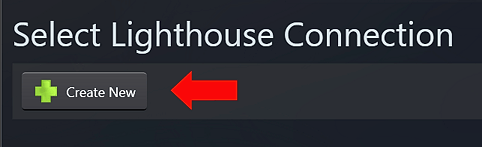
Create new lighthouse connection profile
Fill the configuration page

 Connection Name : localhost
 Hostname : localhost
 Username : root
 For Authentication Method select Password
 Password : root
 For Security Method select RSA/AES
 Click the 'Get' button to retrieve the public key from the lighthouse.
 Click Save
Note
If getting public RSA key fails, make sure Phoesion Glow Reactor windows service is up and running on your machine.
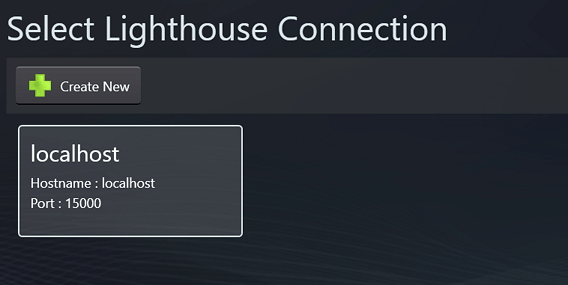
The new connection profile has been saved and is now available in the main screen. Clicking on it will connect you to your local Lighthouse instance.